Install
- Download the latest release archive and unzip it somewhere stable on your machine.
- Open
chrome://extensions, enable Developer mode (top right), then click Load unpacked and select the unzipped folder. - Open
paymentnet.jpmorgan.comand sign in as usual. The extension activates on PaymentNet pages.
First use
-
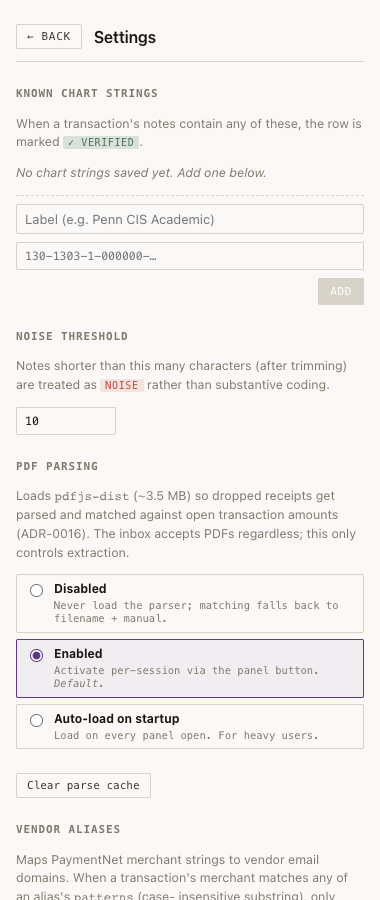
Add your chart strings. Click the ⚙ gear, then under Known chart strings add a labeled chart account for each project / cost center your transactions get coded against. Saved chart strings turn matching coded transactions into a ✓ verified row at a glance.
-
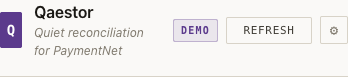
Refresh. Sign in to PaymentNet in another tab if you haven't, then click Refresh in the panel header. Your open transactions populate.
-
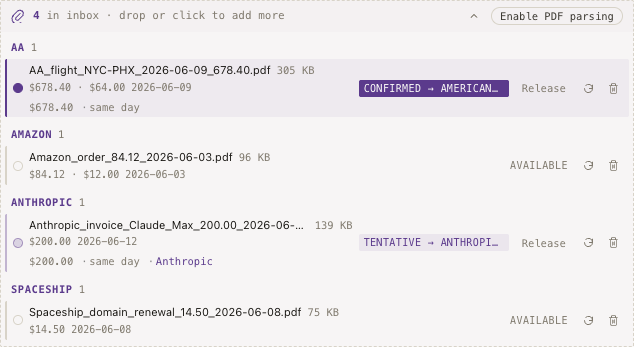
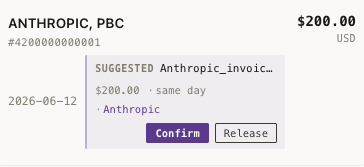
Drop your receipts into the inbox. Drag PDFs onto the paperclip area at the top of the panel. The extension parses each PDF for amount, date, and vendor domain, and proposes matches to open transactions — with the witness data (amounts, dates, vendor) inline so you can verify before clicking Confirm.
What it does
- Auto-matches receipts to transactions by vendor, amount, and date.
- Lets you review and confirm every match before any upload happens.
- Batch-uploads receipts and chart strings once you're satisfied with the matches.
Trust
Local-only. No remote server, no telemetry, no AI. The only network traffic this extension generates is to paymentnet.jpmorgan.com itself — verifiable in Chrome DevTools' Network tab.
Specifically, on install and first activation the extension asks for your explicit consent before doing any of the following:
- Reads
- Your open transactions from the PaymentNet list page; each transaction's detail page (existing notes + coding); each transaction's receipt-list page. Only from
paymentnet.jpmorgan.com. - Writes
- Chart string and business purpose when you click Save on a row. PDF receipts when you click Confirm and then Upload. Nothing else.
- Never
- No remote server. No telemetry, no analytics. No AI or third-party services. No websites other than
paymentnet.jpmorgan.com.
Pilot · feedback
Currently in private pilot. I'm specifically looking for: surprises (good or bad), workflow steps that felt slower than they should, mismatches the auto-suggester got wrong, and anything that broke. Each release pulls feedback into the next round.
Send pilot feedback →